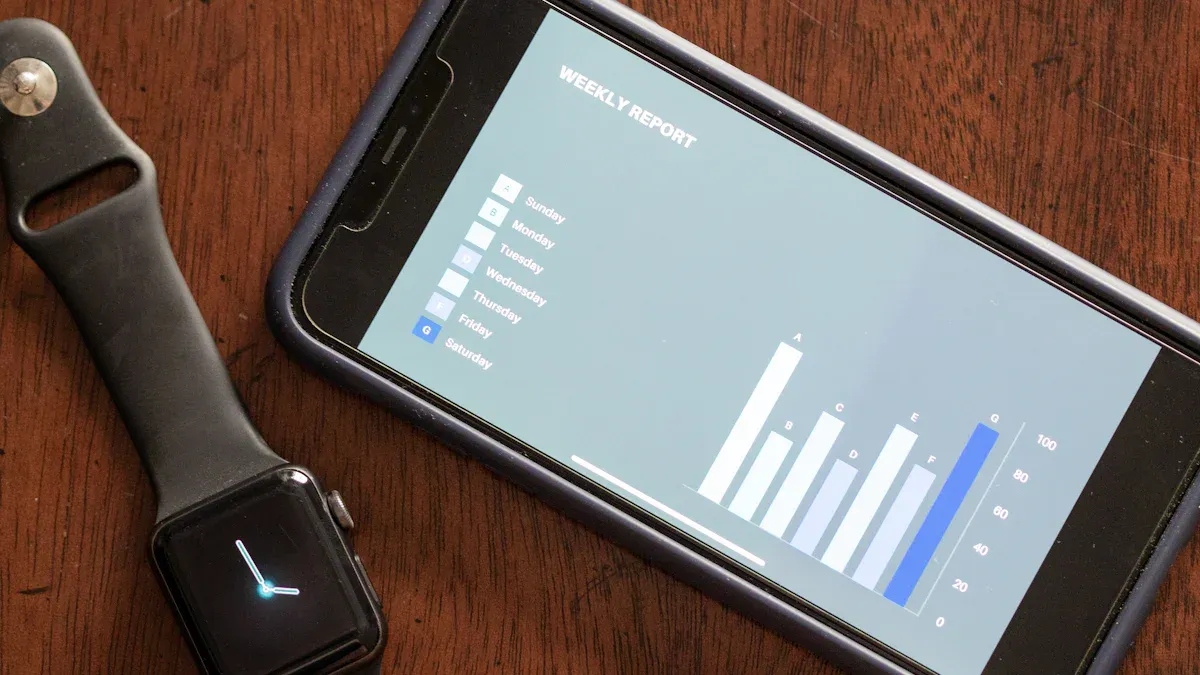
Connecting your wearable devices to smart devices can truly enhance your daily life. When these gadgets work together, you enjoy features like real-time notifications and health tracking, all in one place. This seamless integration can even boost your productivity-did you know that 36% of employees using wearables reported increased productivity after connecting them to smart devices? To pair your wearable devices effectively, simply follow the steps outlined in this guide.
Key Takeaways
Pairing wearable devices with smart devices enhances daily life through features like health tracking and notifications.
Choose between Bluetooth for short-range, low-energy connections or Wi-Fi for faster data transfer and longer range.
Always check compatibility between your wearable and smartphone to avoid pairing issues.
Follow a simple checklist to prepare both devices before starting the pairing process.
Manage notifications effectively to reduce distractions and improve focus during work hours.
Types of Connectivity
When it comes to pairing your wearable devices with other smart devices, connectivity is key. The two most common types of connectivity are Bluetooth and Wi-Fi. Each has its own strengths and weaknesses, so understanding them can help you make the best choice for your needs.
Bluetooth
Bluetooth is the go-to option for many wearable devices. It allows for quick and easy connections without needing a lot of power. In fact, about 400 million wearable devices are projected to use Bluetooth for connectivity in 2024. This technology is designed for short-range communication, making it perfect for devices that stay close to each other, like your smartwatch and smartphone.
Here’s how Bluetooth ensures secure and efficient communication:
Mechanism | Description |
|---|---|
Encryption | Bluetooth uses advanced encryption algorithms to scramble data during transmission. This keeps your information safe from prying eyes. |
Pairing | The pairing process involves exchanging unique identifiers and encryption keys, ensuring secure communication between your devices. |
Low Energy Modes | Bluetooth Low Energy (BLE) minimizes power consumption, allowing your devices to run longer without frequent recharging. |
Wi-Fi
Wi-Fi, on the other hand, offers some advantages that Bluetooth doesn’t. With around 250 million wearable devices expected to use Wi-Fi, it’s a strong contender for connectivity. Wi-Fi provides higher data transfer speeds, making it ideal for tasks like streaming music or syncing large files.
Here are some benefits of using Wi-Fi for your wearable devices:
Higher data transfer speeds for applications like video streaming.
Superior range, allowing for long-distance communication.
Supports multiple device connections simultaneously, enhancing interoperability.
Direct internet connectivity enables devices to interact with cloud services without extra hardware.
Both Bluetooth and Wi-Fi have their unique benefits. Choosing the right one depends on what you need from your wearable devices.
Pair Your Wearable Devices with Your Smartphone
Preparing for Pairing
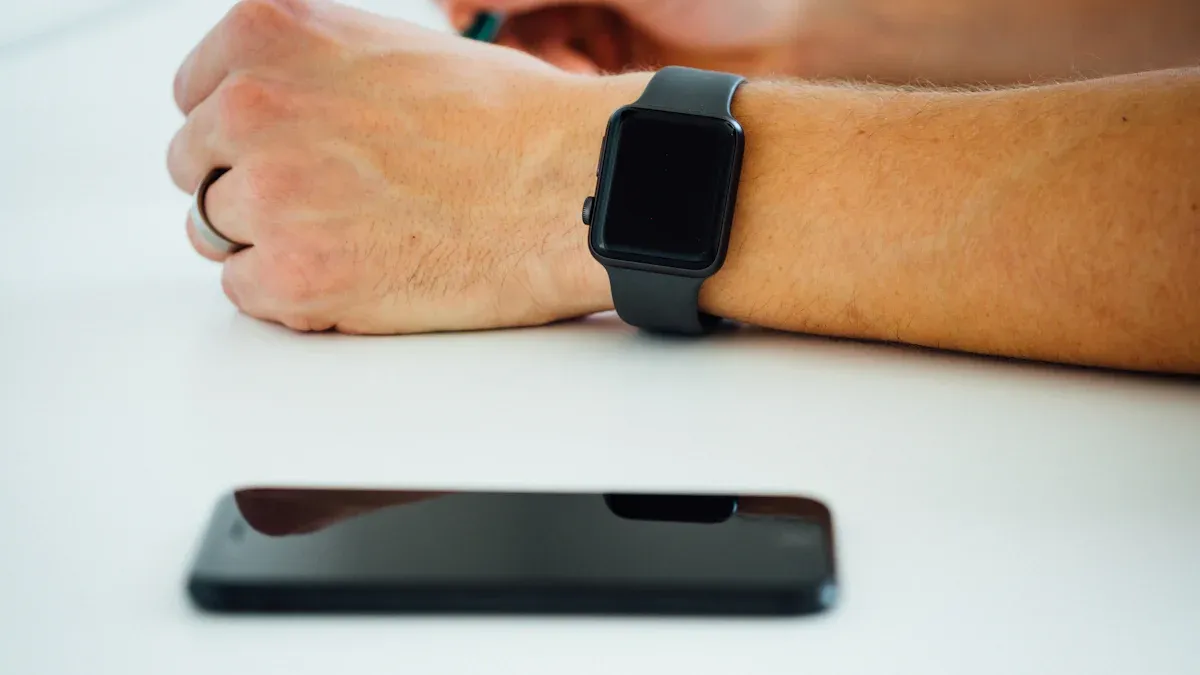
Before you dive into pairing your wearable devices with your smartphone, you need to prepare both devices. Here’s a quick checklist to get you started:
Make sure your smartphone’s Bluetooth setting is turned on.
Download the necessary app for your wearable device. For Samsung devices, this is the Galaxy Wearable app.
Charge your wearable device fully to avoid interruptions during the pairing process.
Ensure your smartphone is updated to the latest software version for compatibility.
Initiating the Pairing
Now that you’re all set, let’s get into the pairing process. Here’s a step-by-step guide for pairing your Samsung wearable device with your Samsung smartphone:
Turn off your watch to start fresh.
Press and hold the Home and Back buttons simultaneously for about 10 seconds until you see ‘Rebooting’ on the screen.
Press Home twice until the Select Reboot Mode screen appears.
Choose Recovery and press the Home button to reboot.
On your watch, swipe up on the watch face, then tap Settings > General > Connect to new phone.
Tap Continue and wait for your watch to reset.
Open the Galaxy Wearable app on your smartphone and tap Start.
When the app finds your watch, tap Galaxy Watch > Pair > Sign in.
Follow the prompts to complete the setup.
If you’re using a Huawei smartphone, the process is similar but may involve the Huawei Health app instead. Just ensure you have the app installed and follow the on-screen instructions to connect.
Once you complete these steps, your wearable device should be paired with your smartphone. You can now enjoy the benefits of integrating your wearable device, like tracking your health and receiving notifications directly on your wrist.
Tip: If you encounter any issues during the pairing process, double-check that both devices are close to each other and that Bluetooth is enabled on your smartphone.
Compatibility Checks for Wearable Devices
Before you start pairing your wearable devices with your smartphone, it’s crucial to check their compatibility. This step can save you time and frustration. Here’s how you can ensure that your devices will work well together.
Device Compatibility
First, you need to confirm that your wearable device is compatible with your smartphone. Different brands and models may have specific requirements. Here are some common compatibility issues you might encounter:
Issue Type | Description |
|---|---|
App Integration | Ensure that the wearable’s companion app integrates seamlessly with the mobile device’s OS. |
Firmware Updates | Verify that the wearable can successfully undergo firmware or software updates when paired. |
Bluetooth Connectivity | Interruptions in Bluetooth connectivity can disrupt user experiences, requiring thorough testing. |
To avoid these issues, check the manufacturer’s website or user manual for compatibility information. You can also look for user reviews online to see if others have successfully paired the same devices.
Software Requirements
Next, let’s talk about the software requirements. Each brand has its own set of guidelines for successful pairing. For example, if you’re using an Apple Watch with an iPhone, make sure to follow these steps:
Ensure both the Apple Watch and iPhone are updated to the latest software.
Verify that Bluetooth is enabled on the iPhone.
Maintain a stable Wi-Fi or cellular network connection.
These steps help create a smooth pairing experience. If you’re using a different brand, like Samsung or Fitbit, check their specific app requirements. Most wearables require you to download a companion app to manage settings and notifications effectively.
Tip: Always keep your devices updated. Software updates often include bug fixes and improvements that enhance compatibility and performance.
By checking device compatibility and ensuring you meet software requirements, you can enjoy a seamless experience with your wearable devices. This preparation makes it easier to connect and utilize all the smart features your devices offer.
Troubleshooting Common Pairing Issues
When you try to pair your wearable device with your smartphone, you might run into some common issues. Here are the top three problems users often face:
Connectivity issues
Battery drain
Delayed or missing notifications
These problems can be frustrating, but don’t worry! Here are some solutions to help you get back on track.
Connection Problems
If your devices won’t connect, start by checking a few things. First, ensure that Bluetooth is enabled on both devices. Sometimes, simply toggling Bluetooth off and back on can resolve the issue. If that doesn’t work, try restarting both your smartphone and your wearable device.
Here’s a quick table of common issues and recommended fixes from major brands:
Brand | Common Issue | Recommended Fix |
|---|---|---|
Apple Watch | Health data not updating in iPhone Health app | Toggle Bluetooth off/on, restart both devices, check iCloud sign-in status |
Samsung Galaxy Watch | Fitness metrics missing in Samsung Health | Update Galaxy Wearable app, clear cache, enable background usage |
Fitbit | Steps or sleep data not appearing | Force sync in Fitbit app, check battery level, ensure GPS/location is on |
Wear OS (Fossil, TicWatch) | Notifications delayed or not syncing | Disable battery optimization for Wear OS app, verify Google account sync |
Garmin | Activity upload failing | Check Bluetooth pairing, enable auto-sync in Garmin Connect, update firmware |
Notification Management
Managing notifications can also be tricky. You want to receive alerts without feeling overwhelmed. Here are some tips to help you control your notifications effectively:
Customize your notification preferences. Choose which events trigger alerts.
Select preferred communication channels for different types of notifications.
Adjust notification frequency and timing to suit your routine.
Decide the level of detail in notifications, from brief alerts to comprehensive updates.
For iOS users, go to Settings > Notifications to toggle alerts for each app. If you’re on Android, navigate to Settings > Apps & Notifications > Notifications to adjust settings for individual apps.
By managing your notifications, you can create a seamless experience that supports both work and leisure. For example, consider disabling social media alerts during work hours to reduce distractions. This way, you can focus better and enjoy your wearable device’s features without interruptions.
Pairing your wearable devices with smart devices can transform your daily routine. Remember these key points:
Identify High-Value Use Cases: Focus on scenarios where your wearable data enhances convenience and personalization.
Build Seamless Connectivity: Use platforms like Apple HealthKit or Google Fit for smooth integration.
Prioritize Privacy and Security: Strong encryption builds trust and keeps your data safe.
By understanding the pairing process and troubleshooting techniques, you can enjoy a more satisfying user experience. So, go ahead! Try pairing your devices and discover the benefits of a connected ecosystem. You’ll be amazed at how much easier life can be!