Have you ever found yourself in a panic because your smartphone suddenly won’t respond? You’re not alone! Many people face smartphone problems that can be frustrating. Knowing how to troubleshoot these issues can save you time and stress. Stick around for practical solutions that can help you get back on track!
Battery Problems
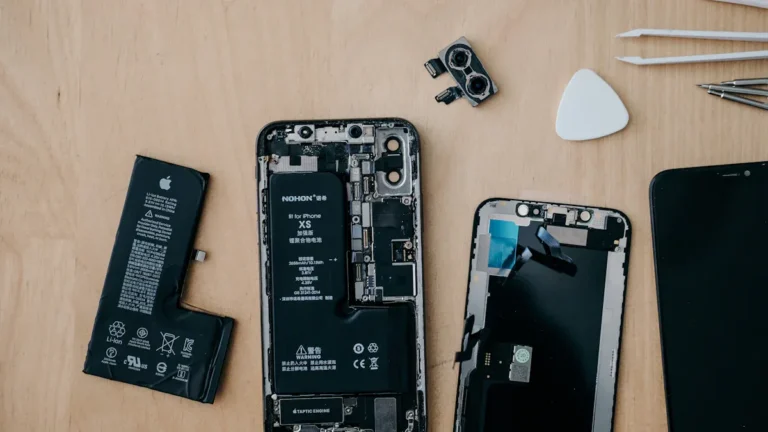
Smartphone battery issues can be a real headache. You might notice your phone dying unexpectedly or not charging fully. Let’s dive into some common symptoms, causes, and troubleshooting steps to help you tackle these battery problems effectively.
Battery Symptoms
You may experience several signs that indicate your smartphone battery is struggling. Here are some of the most commonly reported symptoms:
- Your phone always dies on you.
- Your smartphone is old.
- Your phone never gets 100% charged.
- Things get hot.
- It looks deformed.
If you notice any of these symptoms, it’s time to investigate further.
Causes of Battery Issues
Understanding what causes battery problems can help you prevent them in the future. Here are some common culprits:
- Poor cell reception can lead to faster battery drain as your device constantly searches for a connection.
- Extreme temperatures negatively affect battery performance, causing it to drain quickly.
- An outdated operating system can lead to inefficiencies that increase battery consumption.
- Background apps running unnecessary tasks can significantly strain battery life.
- Malware or hacking can cause unexpected battery drain due to unauthorized activities.
- Battery degradation over time results in reduced capacity and shorter battery life.
In fact, nearly 70% of battery incidents involve lithium-ion batteries, with mobile phones and laptops accounting for 40% of these incidents. Over 100 injuries related to battery overheating have been reported in the past year, highlighting the importance of addressing these issues promptly.
Troubleshooting Battery Problems
If you’re facing battery problems, don’t worry! Here are some effective troubleshooting steps you can take:
- Close Background Apps: Manually close apps you aren’t using to prevent them from running in the background.
- Lower Screen Brightness: Adjust your screen brightness to a lower level or enable adaptive brightness.
- Disable Unnecessary Features: Turn off Bluetooth, Wi-Fi, and Location Services when not in use.
- Update Software: Keep your phone’s software up to date for better battery management. Apple’s release notes for iOS 26 indicate that users may experience a temporary decrease in battery life after installing the update due to necessary background processes.
- Replace an Old Battery: Consider replacing the battery if it no longer holds a full charge.
- Use Fast Charging When Needed: Utilize fast charging to quickly boost your battery when short on time.
Additionally, you can enable Battery Saver Mode when your battery is low, avoid extreme temperatures, enable Dark Mode to reduce power consumption on OLED displays, and charge your phone smartly by keeping it between 20% and 80%.
By following these steps, you can often resolve battery issues without needing professional help. Remember, a little maintenance goes a long way in keeping your smartphone running smoothly!
Performance Issues
You might notice your smartphone slowing down over time, and it can be frustrating. Performance issues can manifest in various ways, making your device feel sluggish and unresponsive. Let’s explore the symptoms, causes, and solutions to help you get your smartphone back to its speedy self.
Performance Symptoms
When your smartphone struggles with performance, you may experience several telltale signs. Here are some common symptoms reported by users:
- Excessive Screen Time: You find yourself losing track of time while using your phone.
- Neglect of Responsibilities: Important tasks slip through the cracks due to smartphone distractions.
- Compulsive Checking: You frequently check for notifications, indicating a lack of control.
- Social Isolation: Increased smartphone use can lead to less face-to-face interaction.
- Difficulty Concentrating: You struggle to focus on tasks without distractions from your device.
- Emotional Withdrawal Symptoms: You feel anxious or irritable when trying to reduce smartphone usage.
- Fear of Missing Out (FOMO): You worry about missing news or social interactions.
- Mood Swings and Irritability: Your mood fluctuates due to excessive smartphone use.
- Low Self-Esteem and Depression: You seek validation through social media, which can worsen feelings of inadequacy.
If you recognize any of these symptoms, it’s time to take action.
Causes of Slow Performance
Understanding the root causes of slow performance can help you address the issues effectively. Here’s a table outlining some common causes:
| Cause | Explanation |
|---|---|
| Older or failing battery | A degraded battery can lead to longer charging times and reduced performance, causing excess heat and potential random shutdowns. |
| Limited storage space | As storage fills up, it directly impacts performance, as the processor struggles to manage memory effectively. |
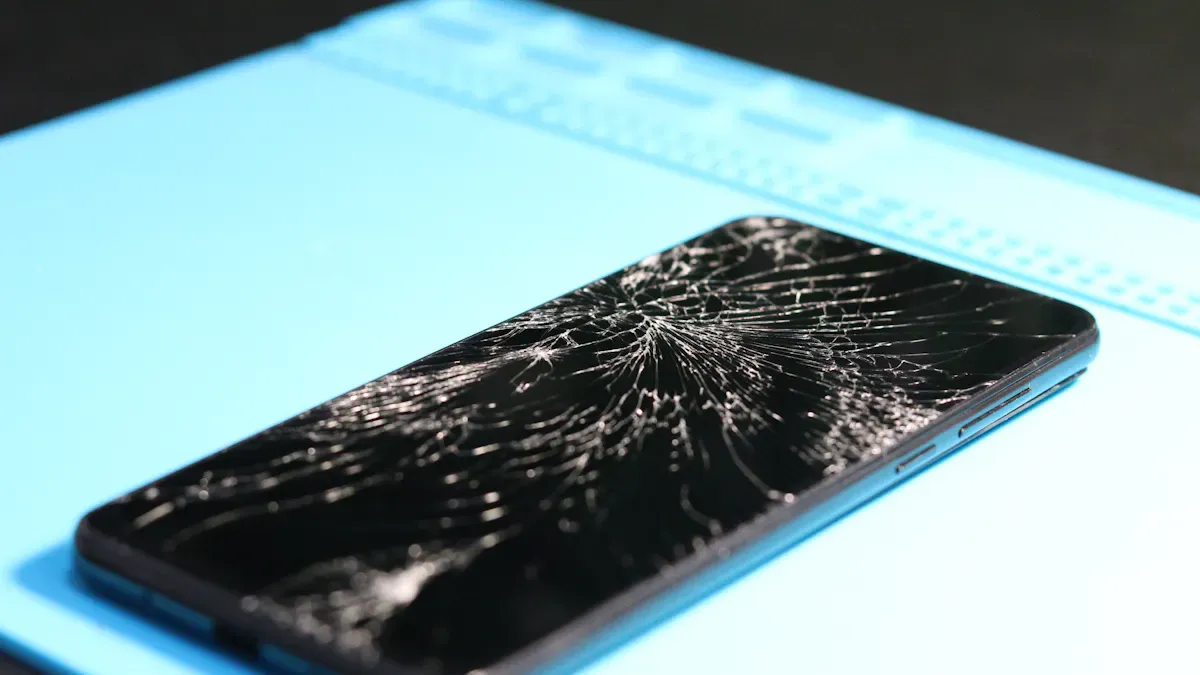
| Physical damage | Damage from drops or moisture can lead to hardware issues that slow down the device. |
| Unnecessary apps/bloatware | Pre-installed apps can drain system resources and slow down performance, making it beneficial to uninstall them to improve speed. |
By identifying these causes, you can take steps to mitigate their impact on your smartphone’s performance.
Solutions for Performance Problems
Now that you know the symptoms and causes, let’s look at some effective solutions to improve your smartphone’s speed:
- Assess Current Performance: Identify specific issues like slow boot times or app crashes.
- Delete Truly Unused Apps: Remove apps you haven’t opened in the last six months.
- Clear System Cache: Clear the cache on Android or offload unused apps on iPhone to free up space.
- Disable Auto-Launch and Background Refresh: Prevent apps from starting at boot or refreshing in the background.
- Update Operating System and Apps: Keep your software updated for performance optimizations. Regular updates often include patches and bug fixes that can resolve slow performance issues.
- Manage Media Storage: Move large files to cloud storage to free up space.
- Restart Weekly: Reboot your device weekly to clear RAM and reset processes.
- Consider Factory Reset: As a last resort, perform a clean install to eliminate clutter and restore your device to its original state.
By following these steps, you can often resolve performance issues without needing to seek professional help. Remember, a little maintenance goes a long way in keeping your smartphone running smoothly!
Connectivity Problems
Connectivity issues can be incredibly frustrating, especially when you rely on your smartphone for daily tasks. You might find yourself struggling to connect to Wi-Fi or Bluetooth, which can disrupt your routine. Let’s explore the symptoms, causes, and solutions to help you regain a stable connection.
Connectivity Symptoms
When your smartphone struggles with connectivity, you may notice several symptoms. Here’s a quick overview of common issues:
| Category | Symptoms |
|---|---|
| Behavioral Symptoms | Compulsive Use, Preoccupation, Withdrawal Symptoms, Loss of Control, Neglecting Responsibilities, Social Conflicts |
| Physical Symptoms | Sleep Disruption, Digital Eye Strain, Neck and Back Pain, Phantom Phone Signals |
| Emotional Symptoms | Anxiety and Agitation, Fear of Missing Out (FOMO), Depression and Loneliness, Irritability |
If you experience any of these symptoms, it’s time to troubleshoot your connectivity.
Causes of Connectivity Issues
Several factors can lead to connectivity problems. Here are some common causes:
| Cause | Explanation |
|---|---|
| Wi-Fi noise | Home appliances can emit signals that interfere with your router, especially if they operate on the same frequency (2.4 GHz). |
| Router location | The position of your router affects signal strength; large objects can weaken the transmission, leading to connectivity issues. |
| Slow network speeds | Multiple devices using the internet simultaneously can slow down the connection for all devices. |
| Excessive cache | A smartphone’s cache can accumulate too much data, slowing down internet speed and affecting overall performance. |
Environmental factors, like signal interference from other devices, can also degrade your connection, leading to dropped calls or slow data speeds.
Fixing Connectivity Problems
You can take several steps to resolve connectivity issues. Here’s a handy list to help you out:
- Update Software and Firmware: Ensure your device’s software is up-to-date to fix bugs and improve connectivity.
- Check Device Battery Levels: Make sure all devices involved have sufficient battery to avoid connectivity issues.
- Turn Bluetooth Off and On Again: This can help reset the connection and clear glitches.
- Restart Your Devices: Restarting can resolve software glitches affecting connectivity.
- Reset Network Settings: This clears saved networks and resets configurations, which can resolve stubborn issues.
- Check Bluetooth Settings: Ensure settings like visibility and permissions are correctly configured.
By following these steps, you can often resolve connectivity problems without needing professional help. Remember, a little troubleshooting can go a long way in keeping your smartphone connected!
App Crashes

App crashes can be incredibly annoying, especially when you’re in the middle of something important. You might notice your apps freezing, closing unexpectedly, or failing to load altogether. Let’s explore the symptoms, causes, and troubleshooting steps to help you tackle these app issues effectively.
Symptoms of App Crashes
When an app crashes, you may experience several common symptoms, including:
- Freezing: The app becomes unresponsive and doesn’t react to your taps.
- Unexpected Closures: The app suddenly shuts down without warning.
- Error Messages: You see pop-ups indicating that the app has stopped working.
- Slow Performance: The app lags or takes too long to load.
These symptoms often stem from poor memory management, inadequate testing, and unhandled errors, which can lead to app instability.
Causes of App Crashes
Understanding why apps crash can help you prevent future issues. Here are some common causes:
- Memory Management Issues: High memory usage can lead to performance problems and app termination.
- Software Incompatibilities: Fragmentation of operating systems can cause crashes when an app’s APIs don’t match the OS APIs.
- Network Connectivity Problems: Poor internet connections can lead to failed API calls, causing apps to crash unexpectedly.
- Resource Management Problems: Limited device capabilities can cause crashes during intensive tasks.
Troubleshooting App Issues
If you find yourself dealing with app crashes, here are some effective troubleshooting steps:
- Force Stop the App: Restart unresponsive apps to clear background processes.
- Clear App Cache: This can improve performance by removing corrupt data.
- Free Up Storage Space: Delete unnecessary files to prevent app issues.
- Update the App: Ensure you have the latest version, as updates often fix bugs.
- Check for OS Updates: Keeping your operating system updated can resolve compatibility issues.
By following these steps, you can often resolve app crashes without needing professional help. Remember, a little maintenance goes a long way in keeping your smartphone running smoothly!
Software Update Problems
Software updates can sometimes lead to unexpected issues. You might find your smartphone acting strangely after an update. Let’s explore the symptoms, causes, and how to fix these pesky software update problems.
Symptoms of Update Issues
After a software update, you may notice several signs that something’s not right. Here are some common symptoms:
- Your device keeps rebooting continuously.
- You can’t connect to Wi-Fi, hotspots, or Bluetooth.
- You see multiple users reporting similar issues in online forums.
If you experience any of these problems, it’s a clear indication that the update may have caused some trouble.
Causes of Update Problems
Understanding why these issues occur can help you avoid them in the future. Here are some common causes identified by technical support teams:
- Software updates can introduce bugs that disrupt app functionality.
- Incompatibilities between the new software and existing apps can lead to issues.
- Unexpected changes in app behavior, like resetting settings or requiring new permissions, can occur.
- Significant problems, such as battery drain or app failures, may arise after an update.
These factors can create a frustrating experience, but don’t worry; there are ways to fix them.
Fixing Software Update Issues
If you’re facing software update problems, try these steps to resolve them:
- Restart Your Device: A simple reboot can often clear temporary glitches.
- Check for Additional Updates: Sometimes, manufacturers release patches to fix issues caused by previous updates.
- Reset Network Settings: This can help with connectivity issues after an update.
- Reinstall Problematic Apps: If specific apps are misbehaving, uninstalling and reinstalling them can help.
- Factory Reset: As a last resort, consider a factory reset. Just remember to back up your data first!
By following these steps, you can often resolve software update problems without needing professional help.
You’ve learned how to tackle various smartphone problems, from battery issues to app crashes. Remember to try these troubleshooting steps before seeking professional help. With a little patience and the right approach, you can resolve many common smartphone problems on your own.
FAQ
What should I do if my smartphone won’t turn on?
First, try charging it for at least 15 minutes. If it still doesn’t respond, perform a hard reset by holding the power button.
How can I improve my smartphone’s battery life?
You can extend battery life by reducing screen brightness, closing unused apps, and disabling location services when not needed.
Why do my apps keep crashing?
Apps may crash due to insufficient memory, outdated software, or compatibility issues. Try updating the app or clearing its cache.