Have you ever felt frustrated when your laptop suddenly slows down or won’t connect to Wi-Fi? You’re not alone! Many people face common laptop problems like these. Learning how to fix common laptop issues yourself can save you time and money. Plus, you’ll find that many solutions are easier than you think!
Key Takeaways
Manage background programs to improve laptop speed. Use Task Manager to end unnecessary tasks and disable unwanted startup applications.
Regularly clear temporary files and uninstall unused programs. This simple maintenance can significantly enhance your laptop’s performance.
Calibrate your laptop battery every few months. This helps maintain accurate charge levels and prolongs battery life.
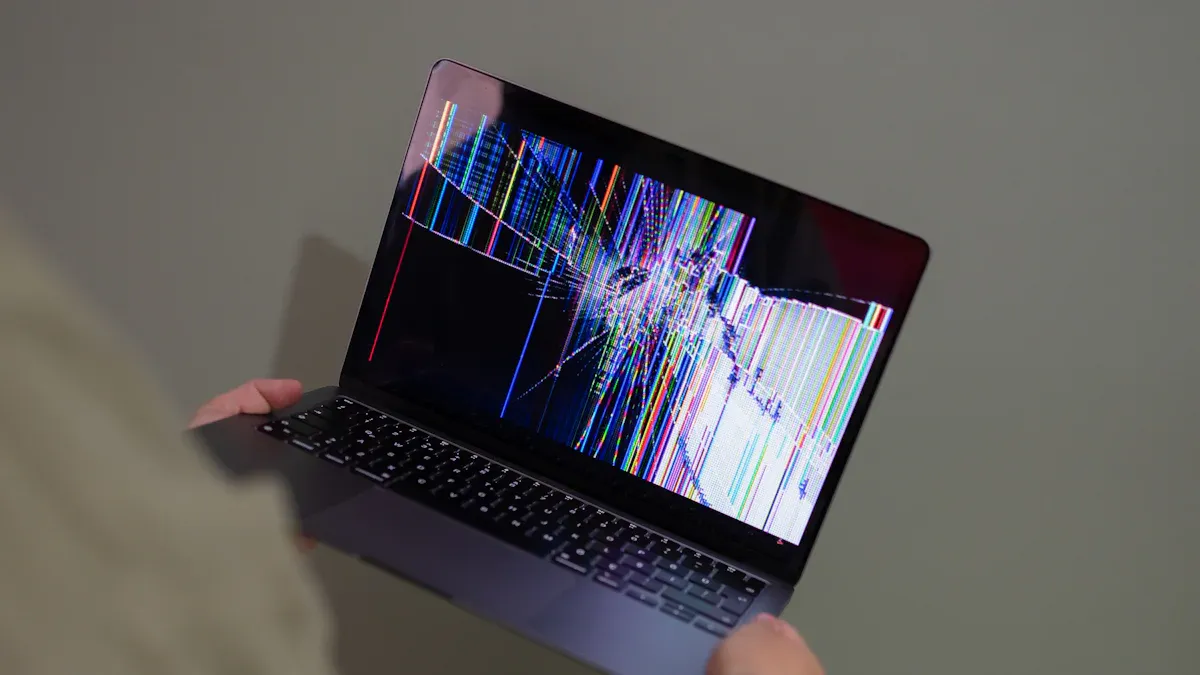
Fix Common Laptop Issues: Slow Laptop
Background Programs
When your laptop feels sluggish, background programs might be the culprits. These are applications that run without your direct command, consuming valuable resources. To tackle this issue, follow these steps:
Open Task Manager: Press
Ctrl + Shift + Escto access Task Manager.Identify Resource Hogs: Look for programs that use a lot of CPU or memory.
End Unnecessary Tasks: Right-click on any unwanted program and select “End Task.” This can free up resources and speed up your laptop.
You can also prevent these programs from starting up with your laptop. Here’s how:
Go to the Startup tab in Task Manager.
Disable any applications you don’t need at startup.
By managing these background programs, you can significantly improve your laptop’s performance.
Clear Temporary Files
Temporary files can pile up over time, slowing down your laptop. Clearing them out is a simple yet effective way to boost performance. Here’s how you can do it:
Use Disk Cleanup:
Type “Disk Cleanup” in the search bar and open the application.
Select the drive you want to clean (usually C:).
Check the boxes for “Temporary files” and other unnecessary files, then click “OK.”
Uninstall Unused Programs:
Go to Control Panel > Programs > Programs and Features.
Review the list and uninstall any software you no longer use.
Regularly clearing temporary files and uninstalling unused programs can help keep your laptop running smoothly.
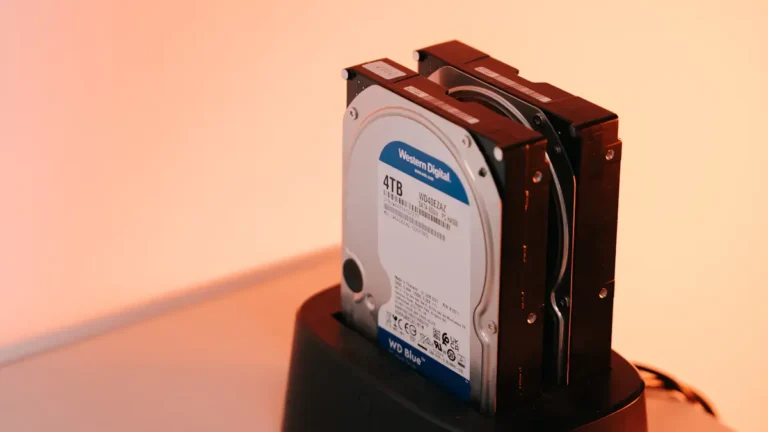
Upgrade to SSD
If your laptop still feels slow after trying the above steps, consider upgrading to a Solid State Drive (SSD). This upgrade can make a world of difference. Here’s what you need to know:
Performance Boost: Upgrading from an HDD to an SSD can reduce boot times from 45-90 seconds to just 12-18 seconds!
Faster Application Launch: Applications launch 3-5 times faster on SSDs compared to traditional hard drives.
Improved File Transfer Rates: SSDs can transfer files at rates of 8-10 GB/s, while HDDs typically max out at 100-150 MB/s.
Switching to an SSD not only enhances speed but also improves overall system responsiveness. If you’re dealing with common laptop problems related to performance, this upgrade is worth considering.
By following these steps, you can effectively fix common laptop issues related to slow performance without needing professional help.
Battery Issues
Laptop battery problems can be frustrating. You might notice your laptop not charging properly, draining too fast, or shutting down unexpectedly. These issues can stem from various factors, but you can often fix common laptop issues related to the battery with a few simple steps.
Calibrate Battery
Calibrating your battery can help improve its performance. This process ensures that your laptop accurately reads the battery’s charge level. Here’s how to do it:
Charge Your Laptop: Plug in your laptop and let it charge to 100%.
Use It Until It Dies: Unplug the charger and use your laptop until it shuts down due to low battery.
Leave It Off: Let your laptop sit for a few hours without charging.
Recharge Fully: Plug it back in and charge it to 100% again without interruption.
Calibrating your battery every few months can help maintain its health and performance.
Adjust Power Settings
Your laptop’s power settings can significantly impact battery life. Adjusting these settings can help you get the most out of your battery. Here are some tips:
Use Battery Saver Mode: Most laptops have a battery saver mode that reduces background activity and dims the screen. Activate this mode when you’re running low on battery.
Lower Screen Brightness: Reducing the brightness can save battery life. You can usually adjust this in the display settings.
Turn Off Unused Features: Disable Bluetooth, Wi-Fi, or any other features you’re not using. These can drain your battery faster than you think.
By tweaking these settings, you can extend your laptop’s battery life and avoid common laptop problems.
Replace Battery
Sometimes, despite your best efforts, your laptop battery may need replacement. Here are some signs that indicate it’s time for a new battery:
Your laptop battery dies sooner than it used to.
It takes a long time to charge.
Your laptop dies unexpectedly.
The battery looks bloated or swollen.
Your laptop overheats during use.
Your laptop gives you a warning about battery health.
If you notice any of these signs, consider replacing your battery. You can often find replacement batteries online or at electronics stores. Just make sure to choose one that’s compatible with your laptop model.
By following these steps, you can tackle battery issues effectively and keep your laptop running smoothly. Remember, regular maintenance can prevent many problems before they start!
Overheating Problems
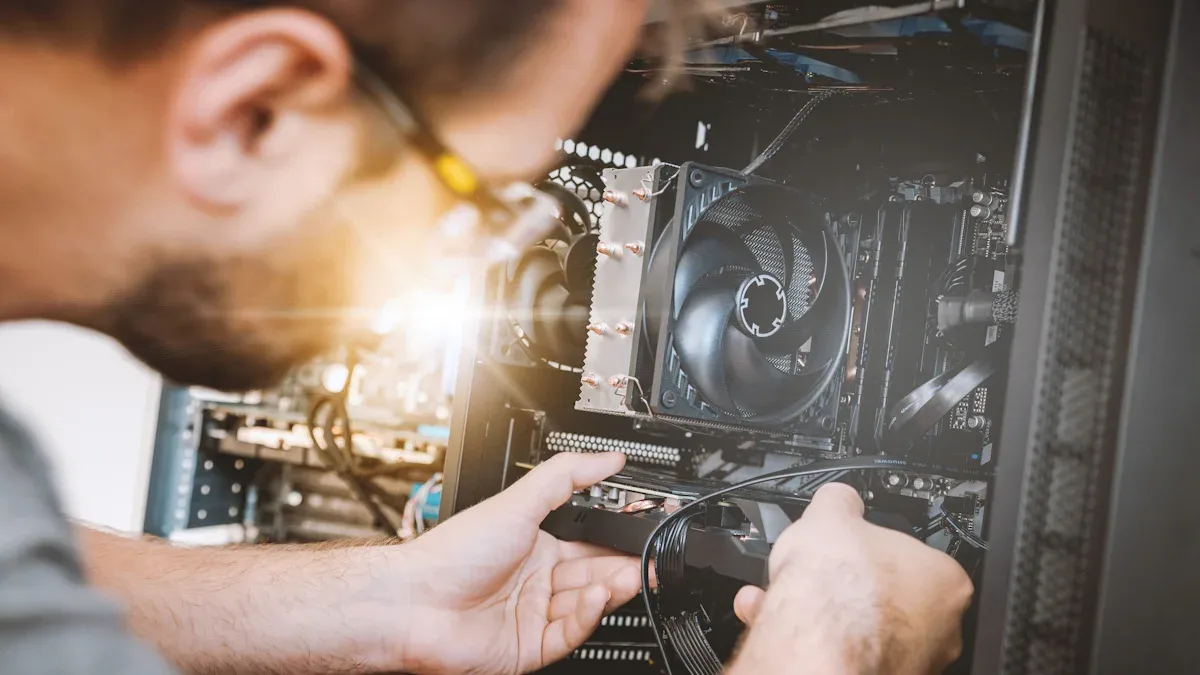
Overheating can lead to serious issues for your laptop. If your device feels hot to the touch or shuts down unexpectedly, it’s time to take action. Here are some effective ways to fix common laptop problems related to overheating.
Clean Vents
Dust and debris can clog your laptop’s vents, restricting airflow. This can cause your laptop to overheat. To clean the vents:
Turn Off Your Laptop: Always shut down your laptop before cleaning.
Use Compressed Air: Spray compressed air into the vents to blow out dust. Hold the can upright to avoid liquid spills.
Wipe Down Surfaces: Use a microfiber cloth to clean the exterior and keyboard.
Regularly cleaning your laptop’s vents can help maintain proper airflow and prevent overheating.
Use Cooling Pad
A cooling pad can be a game-changer for your laptop. It provides additional airflow and helps keep your device cool. Here’s why you should consider one:
Enhanced Airflow: Cooling pads often have built-in fans that improve ventilation.
Ergonomic Design: Many cooling pads elevate your laptop, making it more comfortable to use.
Investing in a cooling pad can significantly reduce the risk of overheating during long work sessions or gaming marathons.
Monitor Resource Usage
Sometimes, overheating happens because your laptop is working too hard. You can monitor resource usage to identify any programs that are causing strain. Here’s how:
Open Task Manager: Press
Ctrl + Shift + Escto see which applications are using the most CPU and memory.Close Unnecessary Programs: If you notice a program using too many resources, close it to reduce the load on your laptop.
By keeping an eye on resource usage, you can prevent overheating and fix common laptop issues before they escalate.
Remember, using your laptop on hard surfaces, shutting it down when not in use, and avoiding enclosed spaces can also help keep it cool.
Connectivity Issues
Having trouble connecting to Wi-Fi? You’re not alone! Connectivity issues can be frustrating, but you can often fix them with a few simple steps.
Restart Router
One of the easiest ways to troubleshoot Wi-Fi problems is to restart your router. This can resolve many connectivity issues. Here’s how:
Unplug the Router: Disconnect it from the power source.
Wait a Minute: Give it about 60 seconds before plugging it back in.
Reconnect: Once it powers back up, try connecting your laptop again.
This simple step can often clear up issues like frequent Wi-Fi drops or limited connectivity.
Update Drivers
Outdated drivers can cause connectivity problems. Keeping your network drivers up to date is essential. Here’s how to check for updates:
Open Device Manager: Right-click on the Start menu and select “Device Manager.”
Find Network Adapters: Expand the “Network adapters” section.
Update Driver: Right-click on your Wi-Fi adapter and select “Update driver.” Follow the prompts to search for updates.
Updating your drivers can help fix issues like Wi-Fi authentication problems.
Check Wi-Fi Settings
Sometimes, the issue lies within your laptop’s settings. Here are a few things to check:
Wi-Fi is Enabled: Make sure your laptop’s Wi-Fi is turned on. You can usually find this in the settings or by using a function key.
Network Configuration: Ensure your laptop is set to obtain an IP address automatically. This can help with limited connectivity issues.
DNS Settings: If you’re having trouble connecting, consider flushing your DNS cache. You can do this by opening Command Prompt and typing
ipconfig /flushdns.
By following these steps, you can troubleshoot common connectivity issues effectively. Remember, a little patience goes a long way!
Software Glitches
Software glitches can be annoying, but you can often fix them with a few simple steps. Keeping your laptop updated and running smoothly is essential for a seamless experience.
Update Software
Regular software updates are crucial. They not only improve performance but also fix bugs and security vulnerabilities. Here’s how to check for updates:
Windows Update: Go to Settings > Update & Security > Windows Update. Click “Check for updates” to see if any are available.
App Updates: Open the Microsoft Store and click on “Downloads and updates.” Select “Get updates” to ensure all your apps are current.
By staying updated, you can avoid many common software glitches.
Run Malware Scan
Malware can cause significant issues on your laptop. Running a malware scan helps identify and remove harmful software. Here’s how to do it:
Use Windows Defender: Open Windows Security and select “Virus & threat protection.” Click “Quick scan” to check for threats.
Install Additional Software: Consider using a trusted third-party antivirus program for extra protection.
Regular scans can keep your laptop safe and functioning well.
Reinstall Applications
Sometimes, applications misbehave and need reinstallation. Here are some common reasons for this:
Applications may prompt for reinstallation due to software updates.
Corruption of application files can lead to repeated reinstallation requests.
Persistent issues with specific applications like BlueJ and Anaconda have been reported.
To reinstall an application, follow these steps:
Uninstall the Application: Go to Control Panel > Programs > Programs and Features. Find the app, right-click, and select “Uninstall.”
Reinstall: Visit the official website or the Microsoft Store to download and install the latest version.
By following these steps, you can tackle software glitches effectively and keep your laptop running smoothly.
Maintenance Routine | Frequency | How to Do It |
|---|---|---|
Regular software updates | Monthly or as-needed | Check for updates in the ‘Windows Update’ tab and ensure apps are up-to-date in the Microsoft Store. |
Optimize startup processes | Quarterly | Use Task Manager to manage startup apps and disable those that are not essential. |
You now have the tools to tackle common laptop issues on your own! From fixing slow performance to addressing battery problems, these solutions can save you time and money. Remember, regular maintenance not only enhances your laptop’s performance but also prevents many issues before they arise.
Tip: Always check for hardware issues and keep your software updated to ensure a smooth experience!
FAQ
What should I do if my laptop won’t turn on?
First, check the power source and connections. If everything seems fine, try a hard reset by holding the power button for 10 seconds.
How can I improve my laptop’s battery life?
Adjust your power settings, lower screen brightness, and close unnecessary applications. Regularly calibrating your battery also helps maintain its health.
Why is my laptop overheating?
Overheating can occur due to dust buildup in vents or excessive resource usage. Clean the vents and monitor running applications to prevent this issue.