Have you ever thought about how much you rely on your gadgets every day? Neglecting device maintenance can lead to serious issues. In fact, the World Health Organization estimates that 50% to 80% of medical equipment fails due to inadequate upkeep. By following simple device maintenance tips, you can prevent costly repairs and extend the life of your gadgets. Regular care not only ensures your devices run smoothly but also enhances their performance and reliability. So, why not start adopting these practices today?
General Device Maintenance Tips
Regular Updates
Keeping your devices updated is crucial for their longevity. Regular software updates not only enhance performance but also protect against security vulnerabilities. You should aim to update your device’s software and firmware at least once a month. Here’s a quick reference table for your update schedule:
| Task | Frequency |
|---|---|
| Update drivers/firmware | Monthly |
Neglecting these updates can lead to several risks. For instance, older software versions may harbor unpatched vulnerabilities, making your device an easy target for malware. Here’s a breakdown of the risks associated with failing to update:
| Risk Type | Description |
|---|---|
| Security Vulnerabilities | Older software versions may contain unpatched vulnerabilities that can be exploited by malware. |
| Malware Threats | Failing to update can expose devices to malware that targets outdated software. |
| Software Lock-out | Vendors may disable older software versions to prevent security risks, forcing users to update. |
| Performance Issues | Neglecting updates can lead to degraded device performance. |
| Compatibility Problems | Older software may not work well with newer applications, leading to functionality issues. |
Safe Storage
Proper storage of your gadgets is essential to prevent physical and environmental damage. Here are some effective device care tips for safe storage:
- Cleaning and Inspecting Devices: Always clean your devices before storing them. Look for issues like cracked screens or frayed cables.
- Selecting Appropriate Packaging Materials: Use anti-static bags and cushioning to protect your gadgets from damage.
- Optimal Storage Conditions: Store devices in a temperature range of 50°F to 77°F with moderate humidity to prevent corrosion.
- Organizing and Labeling Stored Items: Group related items together and label them for easy access.
- Monitoring Stored Electronics: Regularly check your stored devices for dust, moisture, and other potential issues.
Improper storage can lead to significant problems. For example, high humidity can cause corrosion of circuit boards, while temperature extremes can warp plastic casings. Regular monitoring is key to catching potential issues early.
Avoid Overheating
Overheating is a common issue that can severely impact your device’s performance and lifespan. It’s essential to understand the causes and prevention strategies. Here are some common causes of overheating:
- Heavy usage
- Charging habits
- Background apps
- Environmental heat
To prevent overheating, consider these strategies:
- Update firmware regularly to improve thermal management.
- Optimize background apps to reduce unnecessary load.
- Use power-saving modes when possible.
- Ensure proper ventilation around your devices.
- Remove cases during charging to allow heat dissipation.
- Check the quality of your charging cables.
Remember, heat is responsible for a significant percentage of electronic component failures. By managing heat effectively, you can enhance your device’s reliability and performance.
Cleaning Tips for Your Gadgets
Screen Cleaning
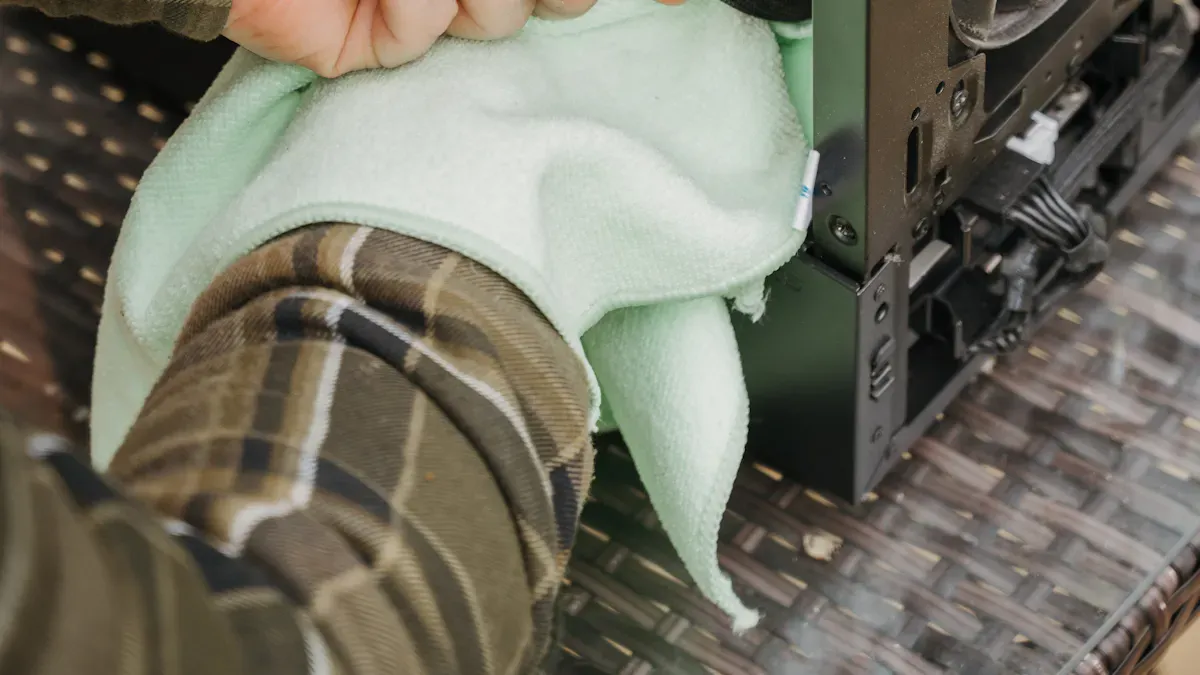
Keeping your screens clean is essential for maintaining clarity and preventing damage. Here’s how you can do it effectively:
- Power Down: Always turn off your device before cleaning. This helps prevent accidental touches and ensures safety.
- Use a Microfiber Cloth: Dampen a microfiber cloth with a screen-safe disinfectant. Gently wipe the screen, avoiding excess moisture.
- Avoid Disinfectant Wipes: These can damage screens. Instead, consider using products like Pure & Clean Surface Cleanser Pro, which is safe for screens.
- Cleaning Frequency: Aim to clean your screens every 1–2 weeks. If you’re in a dusty environment or use your device frequently, weekly cleaning is best. For deep cleaning, do it every 2–3 months when you notice grime.
Dusting Ports
Dust accumulation in your device’s ports can lead to performance issues. Here’s how to keep them clean:
- Use Toothpicks: Wooden or plastic toothpicks can help remove food crumbs and debris from ports.
- Compressed Air: This is great for blowing out stubborn particles that get stuck.
- Regular Checks: Make it a habit to check your ports regularly. Dust can act as an insulator, causing heat buildup and potentially leading to thermal throttling.
Keyboard Maintenance
Your keyboard can harbor more germs than a toilet seat if neglected! Here are some tips to keep it clean and functional:
- Avoid Eating Over It: Crumbs and spills are common culprits for keyboard issues. Try to eat away from your laptop.
- Use Keyboard Covers: These protect against dust and spills without hindering your typing.
- Wash Your Hands: Clean hands help prevent dirt transfer to the keys.
- Compressed Air: Regularly use compressed air to blow dust from between the keys.
- Store in a Clean Environment: Keep your laptop closed or covered when not in use to prevent dust settling.
By following these cleaning tips, you can keep your gadgets in top shape and ensure they last longer. Remember, clean devices regularly to maintain their performance!
Software Maintenance for Longevity
Uninstalling Unused Apps
Have you ever looked at your device and wondered why it feels sluggish? One major reason could be the number of unused apps taking up space and resources. Uninstalling these apps can free up valuable storage and improve your device’s performance.
Here’s a quick look at how much space you can potentially free up by removing some common app categories:
| App Category | Average Size (Initial) | With Data & Cache (After 6 Months) | Potential Space Freed |
|---|---|---|---|
| Light Utility (e.g., Flashlight) | 5 MB | 10 MB | Negligible |
| Social Media (e.g., Instagram) | 40 MB | 400–700 MB | Significant |
| Streaming (e.g., Spotify) | 30 MB | 200–500 MB (offline songs) | Moderate to High |
| Gaming (e.g., Call of Duty Mobile) | 1.5 GB | 2.5–3 GB+ | Very High |
| Productivity (e.g., Microsoft OneNote) | 50 MB | 100–300 MB (synced notes) | Moderate |
As you can see, some apps can take up a lot of space over time. Plus, keeping unused or outdated apps can pose security risks. Old apps that no longer receive updates can harbor serious security flaws. Imagine the frustration of dealing with a hack because of a novelty sound effects app you downloaded just for fun!
Running Antivirus Scans
Another essential tip for maintaining your device is running regular antivirus scans. You want to keep your device safe from malware and other threats. Here are some recommendations for how often to scan:
- Quick scans should be performed daily.
- Full scans are recommended once a week.
- At least one scan per week is suggested to maintain device safety.
By running these scans, you can catch threats quickly and ensure comprehensive coverage of all files and directories. Some of the most effective antivirus programs for personal devices in 2024 include:
- Norton 360: Offers real-time threat protection, VPN, and a password manager.
- Bitdefender: Features AI-driven protection, VPN, and anti-phishing tools.
- McAfee Total Protection: Provides identity theft protection and secure browsing tools.
- Kaspersky Total Security: Known for excellent malware protection and parental controls.
- Avast Free Antivirus: Basic protection with an option for premium features.
Managing Storage Space
Managing your storage space is crucial for optimizing performance. Insufficient storage can slow down your device and lead to frustrating lag times. Here are some tips to help you manage your storage effectively:
- Clear Temporary Files: Regularly delete temporary files and cache to free up space. This simple action can significantly enhance your device’s speed.
- Organize Your Files: Keep your files organized. Delete duplicates and unnecessary documents to make room for what you really need.
- Use Cloud Storage: Consider using cloud storage solutions for photos and videos. This can help you save local storage while keeping your important files accessible.
By following these software maintenance tips, you can keep your device running smoothly and efficiently. Remember, a little effort goes a long way in ensuring your gadgets last longer and perform better!
Battery Care Tips to Extend Life
Optimal Charging Practices
To maintain battery health, you should adopt smart charging habits. Recent research from the University of Michigan highlights several best practices for extending the lifespan of lithium-ion batteries. Here are some key recommendations:
- Minimize time spent at 100% charge: Keeping your device plugged in at full charge can create stress and heat, damaging the battery over time.
- Use optimized charging features: Many devices offer features like Optimized Battery Charging, which helps maintain battery health by preventing prolonged periods at full charge.
- Avoid fast charging unless necessary: Fast charging generates excess heat, which can be detrimental to battery lifespan.
| Practice | Description |
|---|---|
| Minimize time spent at 100% charge | Keeping devices plugged in at full charge creates stress and heat. |
| Use optimized charging features | Helps maintain battery health by preventing prolonged periods at full charge. |
| Avoid fast charging unless needed | Fast charging can generate excess heat, which is detrimental to battery lifespan. |
Avoiding Extreme Temperatures
Extreme temperatures can wreak havoc on your battery. Here’s what you need to know:
- Keep your device cool: High temperatures can accelerate battery degradation. Aim to keep your device in a temperature range between 32°F and 95°F (0°C to 35°C).
- Avoid prolonged exposure to heat: Regularly exposing your battery to temperatures above 95°F can cause irreversible damage. Heat accelerates chemical reactions in lithium-ion batteries, leading to increased degradation.
- Watch out for cold conditions: Low temperatures can also affect battery performance. Avoid charging your device in extremely cold environments, as this can lead to battery draining quickly.
Battery Calibration
Battery calibration helps ensure your device accurately reflects the battery’s charge level. Here’s how to do it:
- Perform calibration periodically: It’s a good idea to calibrate your battery every few months. This helps maintain accurate readings and optimal performance.
- Follow manufacturer instructions: Each device may have specific calibration steps. Check your user manual for guidance.
By following these battery care tips, you can extend the life of your devices and treat your iPhone as a long-term companion. Remember, maintaining battery health is crucial for optimal performance!
Maintaining your gadgets is essential for their longevity and performance. By following these device maintenance tips, you can avoid common pitfalls like ignoring software updates and neglecting routine hardware checks. Remember, small actions can prevent major issues. For instance, using the right charger and keeping your iPhone clean can make a big difference. So, take a moment to implement these practices. Your devices will thank you with better performance and a longer lifespan!
FAQ
What should I do if my device is running slow?
If your device is slow, start by uninstalling unused apps and clearing temporary files. You can also restart your device to refresh its memory. Regular updates can help too!
How often should I clean my gadgets?
Aim to clean your gadgets every 1-2 weeks. If you use them frequently or in dusty environments, consider cleaning them weekly to keep them in top shape.
Can I use any charger for my device?
It’s best to use the charger that came with your device. Using third-party chargers can lead to overheating or damage. Always check compatibility before using a different charger.
How can I tell if my battery needs replacing?
If your device’s battery drains quickly or doesn’t hold a charge, it might be time for a replacement. You may also notice swelling or overheating, which are clear signs of battery issues.
Is it necessary to run antivirus software on my device?
Yes, running antivirus software is essential for protecting your device from malware and other threats. Regular scans help keep your data safe and your device running smoothly.