
Data loss can happen to anyone, and it often strikes when you least expect it. Imagine losing precious photos, important documents, or critical work files. This scenario becomes a reality for many, as 42% of organizations experienced data loss last year. To avoid this, it’s essential to backup your devices, which means creating copies of your data to ensure you can recover it when needed. Whether you are tech-savvy or not, understanding the importance of a reliable backup strategy is crucial. After all, 60% of data backups fail at critical moments. Don’t wait for a disaster to strike; take proactive steps to backup your devices and protect your data today.
What is Backup?
Importance of Backing Up
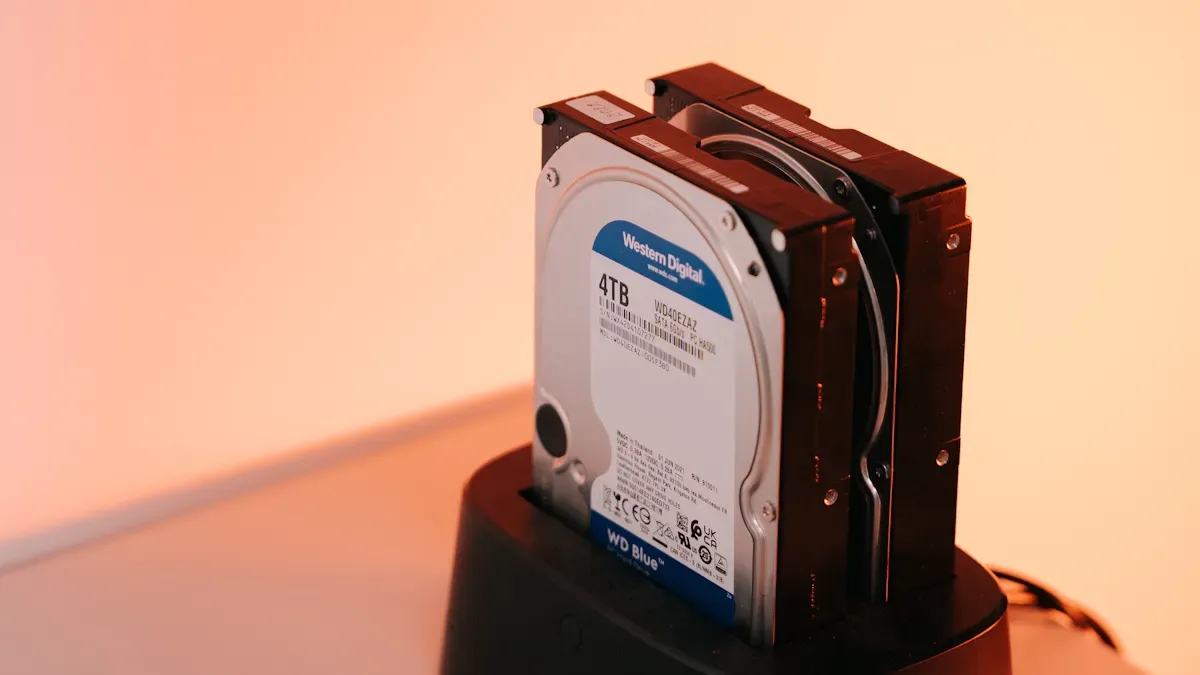
Backing up means creating secure copies of your data. This process protects your valuable information from loss, corruption, or unauthorized access. Whether you use a computer, tablet, or phone, backing up your data is essential. It allows for quick recovery in case of unexpected events. For both personal and business contexts, having a backup strategy is vital.
The risks of not backing up your data can be severe. Consider the following table that outlines some of the main risks:
| Risk Type | Description |
|---|---|
| Cyber Threats | Ransomware can encrypt files, making them inaccessible without a backup. |
| Disaster Recovery | Natural disasters can wipe out data; backups allow for quick recovery and business continuity. |
| Hardware Failures | Unexpected failures of storage devices can lead to irreversible data loss without backups. |
| Human Error | Mistakes like accidental deletions can be mitigated with backups that allow for recovery. |
| Regulatory Compliance | Many industries require data retention; backups help meet these legal obligations. |
| Business Continuity | Data loss can cause significant downtime and financial losses; backups ensure quick recovery. |
| Cost Savings | Investing in backups is more cost-effective than recovering lost data or rebuilding it from scratch. |
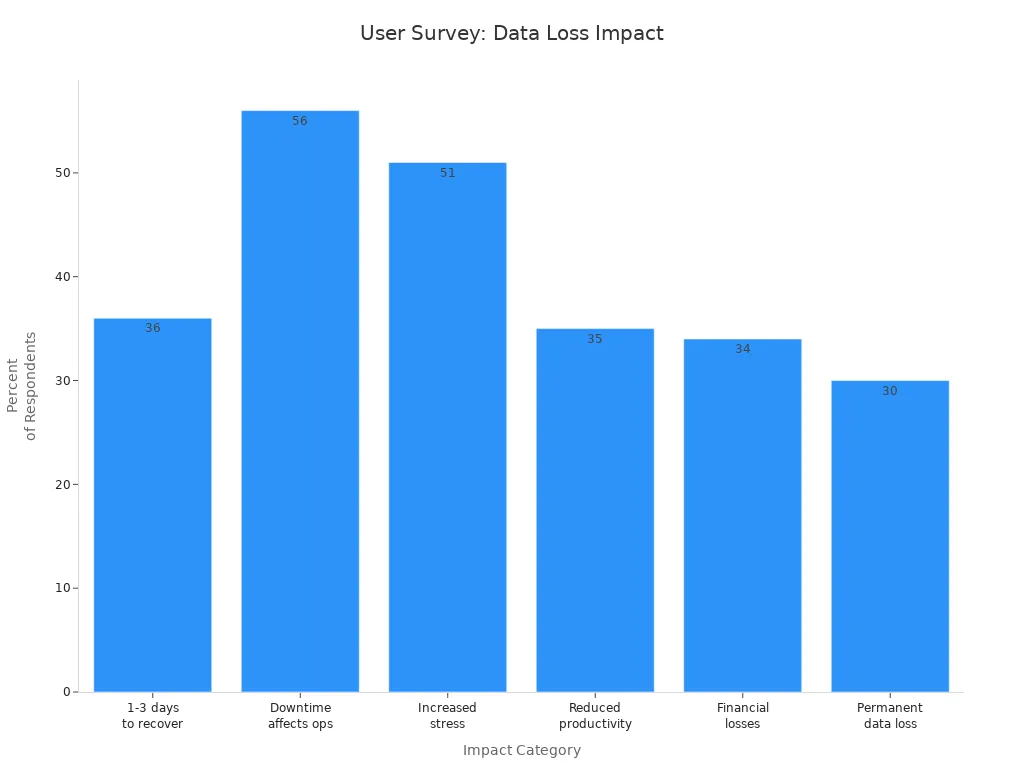
Without a backup, you risk losing important files and memories. In fact, 94% of companies do not recover fully after severe data loss. This statistic highlights the importance of having a backup plan. You may think it won’t happen to you, but the reality is that 70% of small firms go out of business within a year of a major data loss event.
To protect yourself, prioritize data protection by implementing a regular backup routine. This simple step can save you from significant stress and financial loss in the future.
Backup Your Devices: Methods

When it comes to backing up your devices, you have several effective methods to choose from. Each method has its own advantages and disadvantages, so understanding these can help you decide which backup options work best for you.
Cloud Solutions
Cloud backup has gained popularity due to its convenience and accessibility. With cloud solutions, you store your data off-site, allowing you to access it from anywhere with an internet connection. Here are some key benefits:
- Increased Storage Space: Cloud services often provide scalable storage options, so you can expand your capacity as needed.
- Cost Savings: You avoid hefty upfront hardware costs. Instead, you pay a subscription fee based on your storage needs.
- Mobility: Access your files from any device, enhancing productivity.
However, there are some drawbacks to consider:
- Dependence on Internet Access: You need a stable internet connection to access your data.
- Potentially Escalating Costs: As your storage needs grow, so may your monthly fees.
- Reduced Control Over Data: Your data is managed by third-party providers, which can raise concerns about privacy and security.
Several leading cloud backup providers offer various features. For example, services like Backblaze provide unlimited data backup, while Microsoft OneDrive integrates seamlessly with Microsoft 365.
Local Backup Options
Local backup methods involve storing your data on physical devices, such as external hard drives or USB drives. Here are some common local backup options:
- External Hard Drives: This method allows you to copy data directly to an external drive. It offers on-site accessibility and speed but may require manual management.
- USB Drives: These portable devices are great for quick backups, especially for mobile users. However, they can be limited by storage capacity.
- Network-Attached Storage (NAS): This option connects to your home network, allowing multiple devices to back up data simultaneously. It provides speed and security but can be more complex to set up.
While local backups offer control and speed, they also come with risks. If a disaster strikes your location, such as a fire or flood, you could lose both your original data and your backups.
The 3-2-1 Backup Rule
To ensure your data remains safe, consider following the 3-2-1 backup rule recommended by data security experts:
- Three Copies of Your Data: Keep at least three copies – the original plus two backups.
- Two Different Media Types: Use two distinct storage types, such as an external hard drive and a cloud service.
- One Offsite Copy: Always store one backup offsite to protect against local disasters.
By adhering to this rule, you minimize risks associated with hardware failures, cyberattacks, and natural disasters.
Steps to Backup Your Devices
Setting Up Backups
Setting up backups is crucial for protecting your data. Follow these steps to ensure your devices are backed up properly.
For Windows Computers:
- Connect an external drive to your computer.
- Search for ‘File History’ in the Start menu. Select your drive to set it up.
- Configure backup settings for frequency and version retention.
- For a system image backup, open Control Panel, go to ‘Backup & Restore (Windows 7)’, and click ‘Create a system image’.
- Follow the prompts to complete the backup process.
For macOS Devices:
- Use Time Machine, the built-in backup tool on macOS.
- Connect an external storage device (recommended to be at least twice the size of your Mac’s storage).
- If prompted, agree to use the device for Time Machine. If not, go to System Settings > General > Time Machine to select your drive.
- Consider encrypting your backups for added security.
- Time Machine will automatically back up your data hourly for the last 24 hours, daily for the last month, and weekly for all previous months, deleting the oldest backups when the drive is full.
For Android Phones:
- Choose where you’re backing up to. Pick a storage option, either cloud or physical (like a USB key).
- Decide what you need to back up. Determine which files and devices you want to include.
- Set up a backup system. You can choose between automatic backups at regular intervals or manual backups with reminders.
- Back up your data! Start the backup process and secure sensitive files with a strong password.
For iPhone:
- Connect your iPhone to your computer.
- Open iTunes (or Finder on macOS Catalina and later).
- Select your device when it appears on the screen.
- Choose “Back Up Now” to create a backup on your computer. You can also enable “Encrypt iPhone backup” for added security.
Executing the Backup
Executing your backup is just as important as setting it up. Here’s how to ensure your backups are effective:
- Full Backup vs. Incremental Backup:Backup TypeAdvantagesDisadvantagesFull Backup- Complete snapshot of all data- Requires significant storage space- Quick recovery from a single source- Takes longer to execute, potentially interfering with operations- Comprehensive data protection- Higher costs associated with storage managementIncremental Backup- Economical, only stores changed data- Longer restoration time due to sequential processing of backups- Faster backup process, minimizing operational interference- Complexity in recovery process, requiring all previous backups to restore- Allows for more frequent backups, reducing risk of data loss- Potential for critical downtime during restoration
- Verifying Your Backup: After completing your backup, ensure it was successful. You can:
- Use checksums to detect errors and compare files before and after backup.
- Regularly restore subsets of backups to verify data integrity.
- Check the integrity of the source drive and backup repository to avoid incorporating damaged files.
By following these steps, you can confidently back up your devices and protect your valuable data.
Maintaining Your Backups
Creating regular backups is essential for protecting your data. A consistent backup schedule helps you minimize the risk of data loss. Ideally, you should back up your data weekly. For files that change frequently, consider backing them up daily. Following the 3-2-1 backup rule can also enhance your backup strategy. This rule suggests keeping three copies of your data on two different media types, with one copy stored offsite.
To maintain the integrity of your backups, you must verify them regularly. Here are some effective methods to ensure your backups are intact:
- Check File Accessibility: Attempt to open files from your backup. If they fail to open or display error messages, this indicates potential corruption.
- Monitor Backup Logs: Use software that provides real-time log analysis. This feature can help you identify errors or failed backups quickly.
- Conduct Regular Restores: Periodically restore files from your backup to confirm they are accessible and uncorrupted. This practice ensures that your backup remains reliable.
You can use various tools to monitor the integrity of your backups. Here’s a table summarizing some effective options:
| Feature | Description |
|---|---|
| Real-Time Log Analysis | Ingests log files in real time to identify errors, failed backups, and potential threats. |
| Proactive Issue Resolution | Actively resolves issues rather than just alerting users, ensuring smooth backup operations. |
| Full Compliance Support | Regular integrity tests and reporting to maintain compliance with industry regulations. |
| 24/7 Monitoring | Continuous oversight to promptly address backup issues, minimizing downtime. |
| Customized Alerts | Provides actionable insights for maintaining a robust backup and disaster recovery strategy. |
By implementing these practices, you can ensure that your backup security remains strong. Regularly verifying your backups will give you peace of mind, knowing that your data is safe and recoverable when needed.
Backing up your data is not just a precaution; it is essential for protecting your valuable information. Regular backups shield you from cyber threats, hardware failures, and human errors. They also help you comply with regulations and ensure business continuity. Here are some immediate actions you can take:
- Prioritize data for backup, focusing on irreplaceable files and important documents.
- Implement the 3-2-1 backup rule: keep three copies of your data on two different media, with one copy off-site.
- Utilize both on-site and off-site backups for comprehensive protection.
By taking these steps, you can enjoy peace of mind knowing your data is secure. Don’t wait for a data loss event to act; start backing up your devices today!
FAQ
What is the best way to backup my data?
You can use both cloud solutions and local backup options. Cloud services offer accessibility, while local backups provide control. Combining both methods ensures comprehensive protection.
How often should I backup my devices?
You should backup your devices regularly. For critical files, consider daily backups. For less frequently changed data, weekly backups may suffice.
Can I backup my data on multiple devices?
Yes, you can backup your data on multiple devices. Use the 3-2-1 backup rule: keep three copies on two different media types, with one copy stored offsite.
What happens if my backup fails?
If your backup fails, you may lose important data. Regularly verify your backups to ensure they are intact. If issues arise, troubleshoot or seek professional help.
Is it safe to use cloud backups?
Cloud backups are generally safe, but choose reputable providers. Ensure they offer encryption and strong security measures to protect your data from unauthorized access.